Promos
Requesting feedback
Trackdrop lets you collect feedback directly from the people you send promos to. Recipients can rate your release, leave a comment, and pick a favourite track — giving you valuable insight into how your music is being received.
Requiring feedback before downloads
You can optionally require recipients to leave feedback before they download your tracks. This is configured during the Details step of creating a promo.
Scroll down to the bottom of the Details page, where you'll see the access options for your promo. Check the Require feedback to download checkbox. This option is only available when Allow downloads is also enabled.
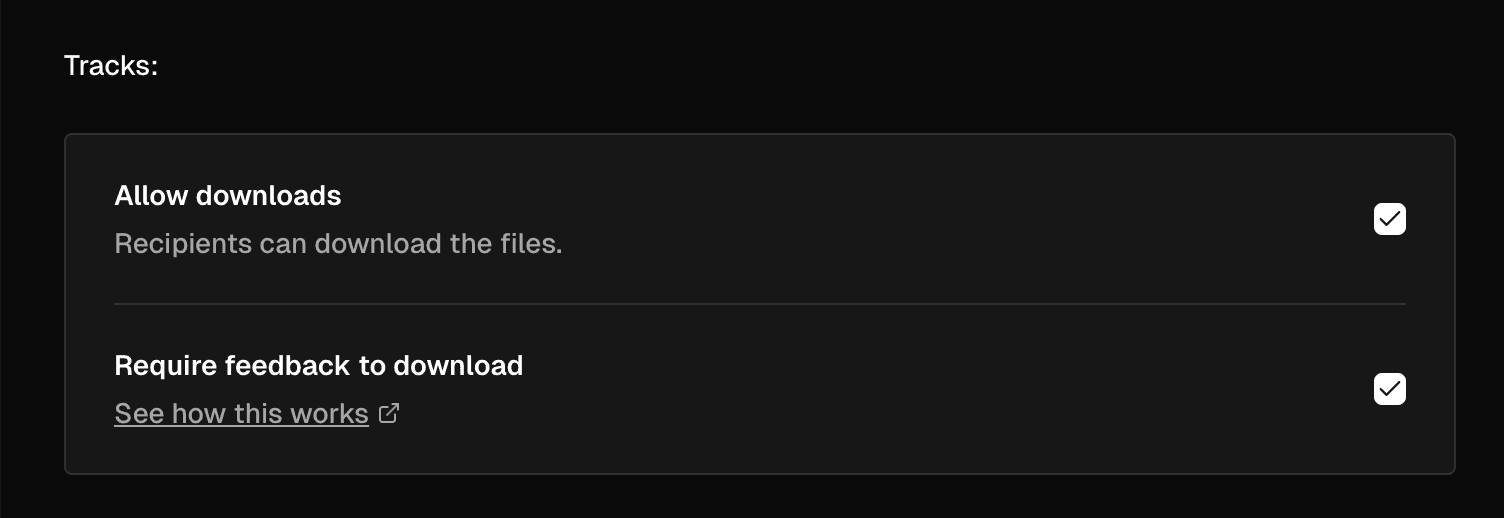
When this is enabled:
Recipients will see a feedback form on your promo page and must submit it before downloading any tracks.
They can still stream your tracks without leaving feedback.
If a recipient tries to download before submitting feedback, they'll be prompted to complete the form first.
Heads up: If you turn off "Allow downloads", the feedback requirement will automatically be turned off too, since it only applies to downloads.
What recipients see
When "Require feedback to download" is enabled, recipients will see a Rate it section at the bottom of your promo page. The feedback form asks for:
Rating — a 1 to 5 star rating (required)
Comment — a written response with a minimum of 10 characters (required)
Favourite track — a dropdown to pick their favourite track from the release (optional, only shown for multi-track promos)
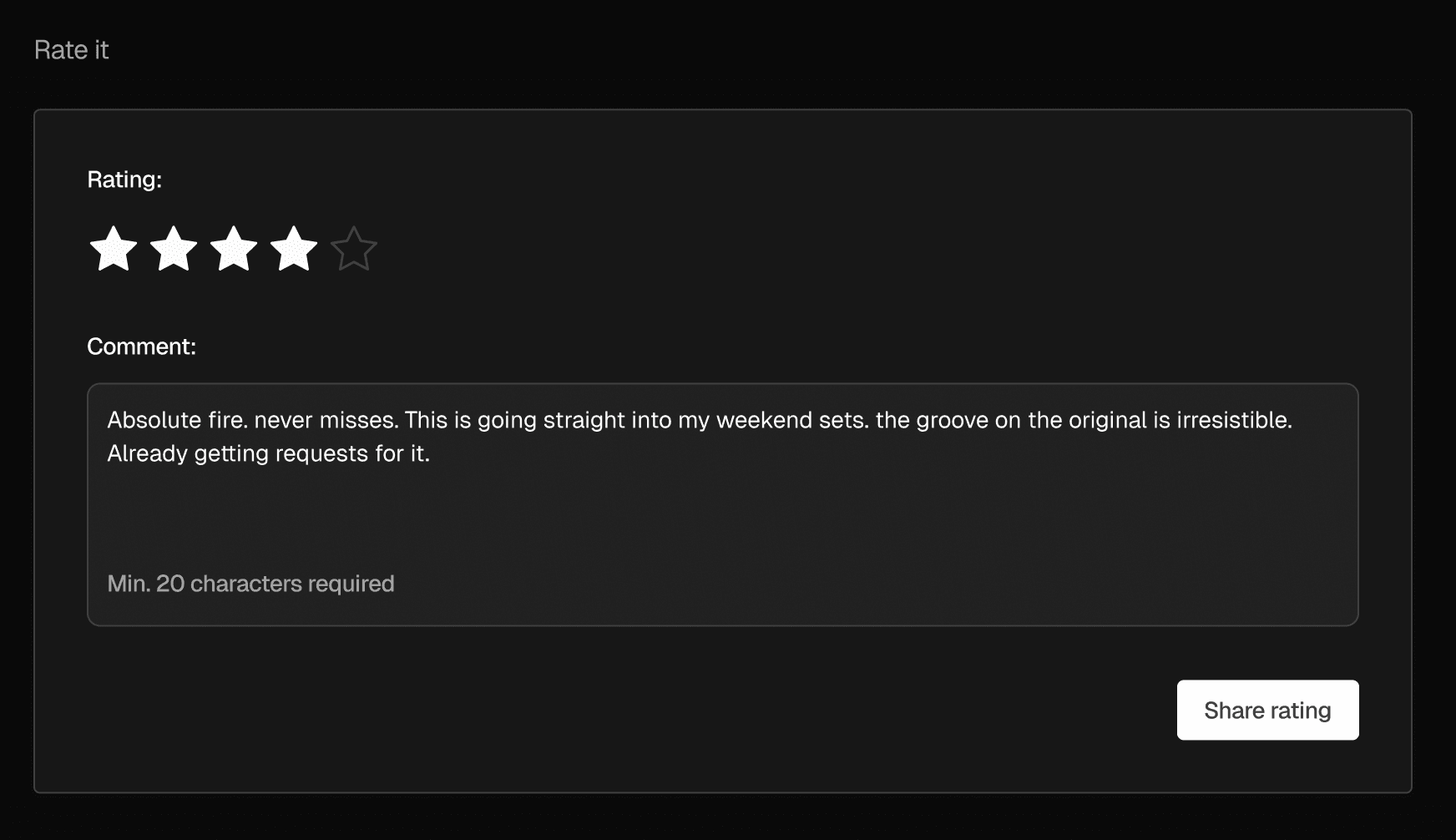
Once they submit, the form is replaced with a confirmation message showing their star rating. If a recipient has already submitted feedback, they'll see this confirmation when they revisit the promo page.
Only recipients who were sent the promo can submit feedback. If someone else visits your promo page, they'll see a message explaining that only recipients can leave feedback.
Viewing feedback on your dashboard
After sending a promo, you can view all the feedback you've received on your promo's detail page. Click on a sent promo from your dashboard, then select the Feedback tab.
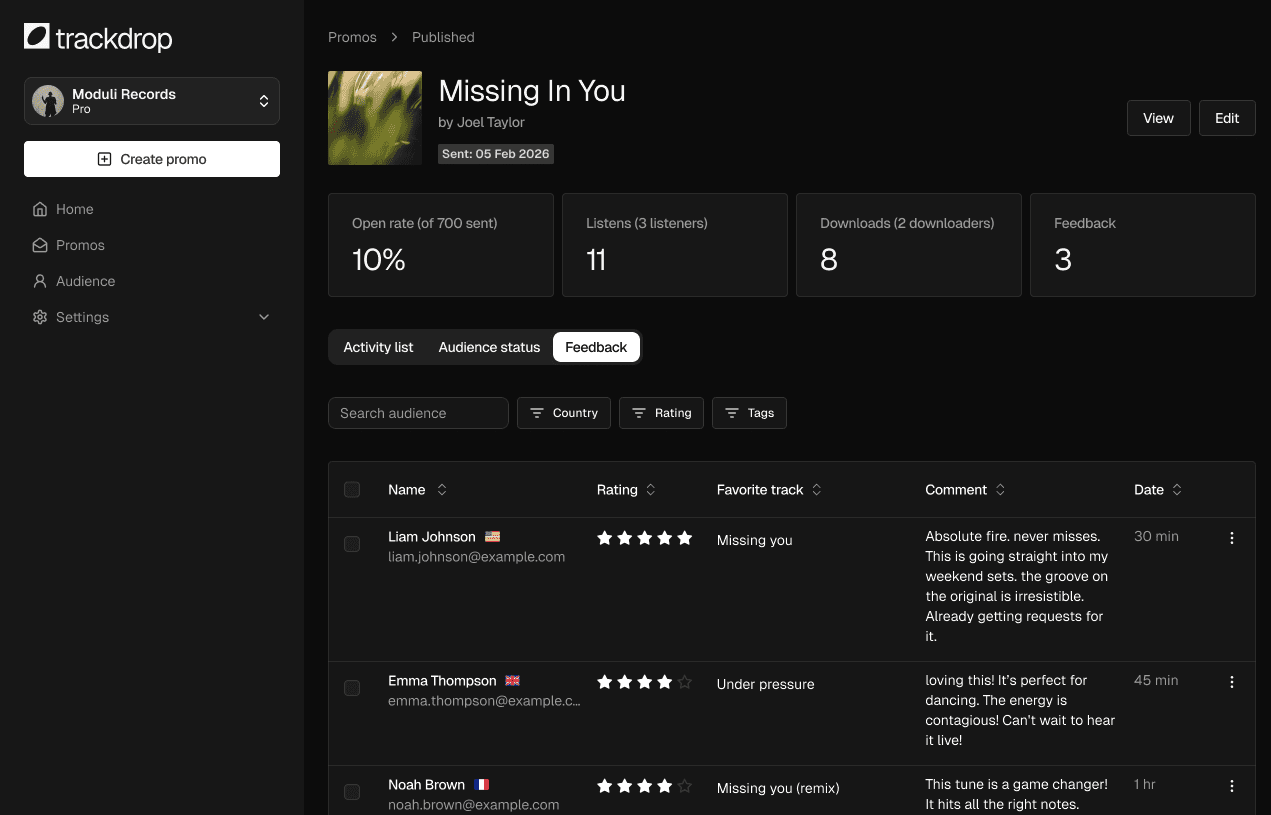
The Feedback tab displays a table with the following information for each response:
Name — the contact's name or email address
Rating — their star rating
Favourite track — the track they selected as their favourite (if any)
Comment — their written feedback
Date — when the feedback was submitted
At the top of the table, you'll see a count of how many responses you've received out of the total number of recipients.
Filtering and sorting
The feedback table includes several options to help you find specific responses:
Search — search by contact name or email address
Country — filter by the contact's country
Rating — filter by star rating (you can select multiple ratings)
Audience tags — filter by the tags you've assigned to contacts
You can also sort the table by name, rating, or date by clicking on the column headers.
Deleting feedback
If you need to remove a feedback entry, you can delete it directly from the table. This action is permanent and cannot be undone.
Sharing feedback with others
You can share a summary of your feedback with anyone — even people who don't have a Trackdrop account. This is useful for sharing results with artists, managers, or other team members.
To share feedback, click the Share feedback button on your promo's detail page. This copies a public link to your clipboard that you can send to anyone.
The shared feedback page includes:
Promo details — your artwork, release title, artist name, and send date
Delivery stats — emails delivered, open rate, listens, and downloads
Feedback summary — the average star rating and the top 3 favourite tracks with vote counts
Individual responses — a table showing each contact's name, rating, favourite track, comment, and date
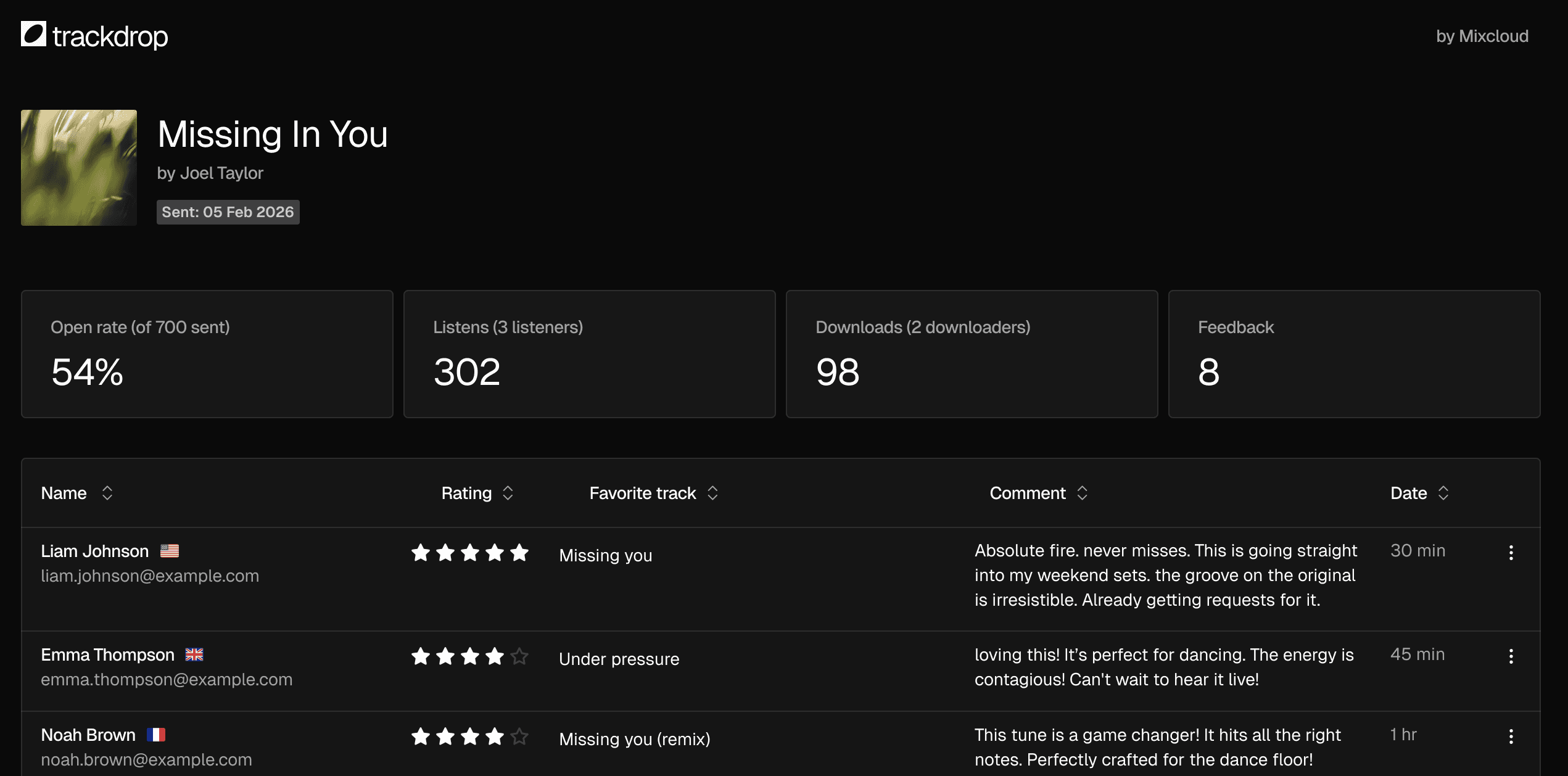
Heads up: The share link is unique to each promo and does not require a login to view. Anyone with the link can see the feedback summary and individual responses.
Common questions
Can recipients update their feedback after submitting? Yes. If a recipient submits the feedback form again, their previous response will be replaced with the new one.
Do recipients have to leave feedback to listen? No. Recipients can always stream your tracks without leaving feedback. The feedback requirement only applies to downloads.
What's the minimum comment length? Comments must be at least 10 characters long.
Can I delete feedback? Yes. You can delete individual feedback entries from the Feedback tab on your promo's detail page. Deletion is permanent.
Who can see the shared feedback link? Anyone with the link can view the feedback summary and individual responses. No Trackdrop account is required. Be mindful of who you share it with, as it includes contact names and their feedback.
Can I turn feedback on or off after sending a promo?
You can edit the "Require feedback to download" setting on a sent promo. See [Editing a sent promo] for more details.