Promos
Creating a promo
Once your account and organization are set up, you’re ready to create your first promo on Trackdrop.
To get started, head to your dashboard and click Create Promo.
Step 1: Upload
Whether you’re uploading a single track or the release you’re promoting has multiple audio files, it’s quick and easy to get your content on Trackdrop.
Simply drag and drop your files, or click anywhere in the upload box (as shown below) to select the files from your computer.
What you can upload:
File format: MP3, WAV, FLAC, AIFF, or M4A
File size: Up to 100 MB per audio file
Number of tracks: Maximum 20 tracks per promo
When you add your audio files, a progress bar will appear so you can monitor progress.
For larger releases, tracks will be uploaded 3 files at a time. If you have more than 3 tracks in your promo, they’ll be queued to upload automatically.
If there are any issues with your upload, we’ll retry automatically up to 3 times. If your file(s) still won’t upload, we recommend double-checking that they’re compatible before trying again.
Step 2: Details
After your uploads have completed, it’s time to add the details about your release that you want to share with your recipients.
To help speed things up, we’ll use the metadata from your files to pre-populate information about each track. You can make any edits or corrections before continuing.
Promo title and artwork:
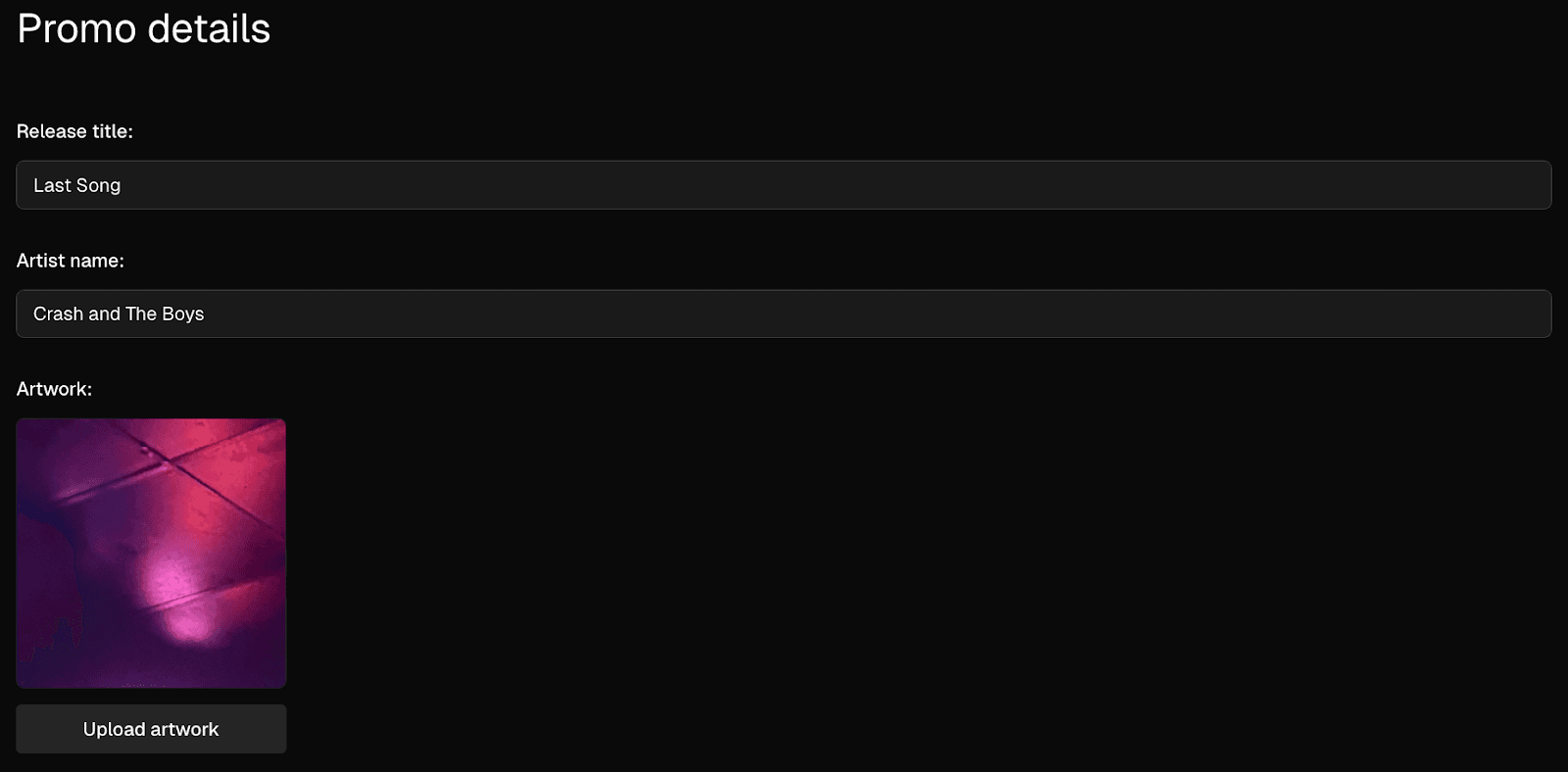
Start off by entering the release title, artist name and selecting the artwork for your promo.
Your title and artist name can be up to 200 characters.
If you’ve embedded artwork in your tracks, we’ll upload these so you can select one for the cover of your promo. Alternatively, you can upload a new image file. Keep the following requirements in mind:
File type: PNG or JPEG
Maximum dimensions: 4096 x 4096 pixels
Format: The image will be displayed as a square.
We’ll automatically resize the image to 800 x 800 pixels, maintaining aspect ratio. You may want to crop non-square images before uploading, to ensure the parts of the image you want included are shown.
Track details
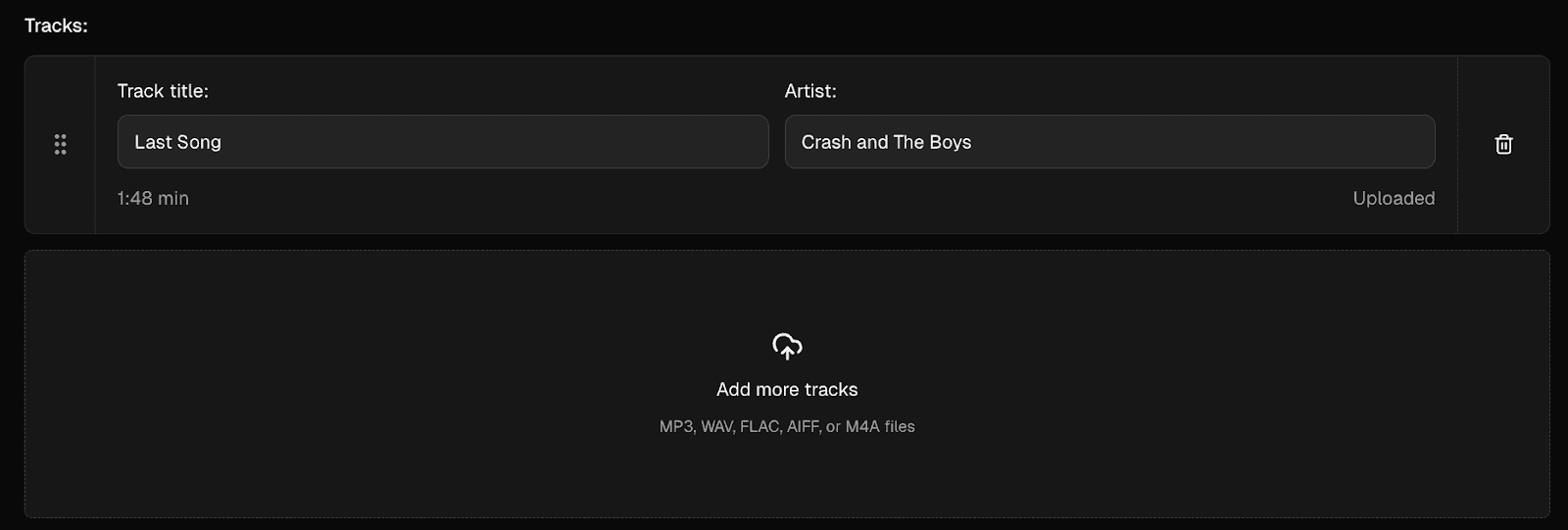
Once your basic release details have been entered, scroll down to the track section to update the information for each track:
You can change the track title and artist for each file.
You can also manage the tracks included in this promo, by uploading additional tracks or deleting them from the list.
Track durations are automatically listed, based on the audio file. If the duration appears incorrect, please double-check your audio file and try to reupload it to your promo.
Customise the order of tracks in your promo by clicking to the left of the track name and dragging up or down.
Further release details
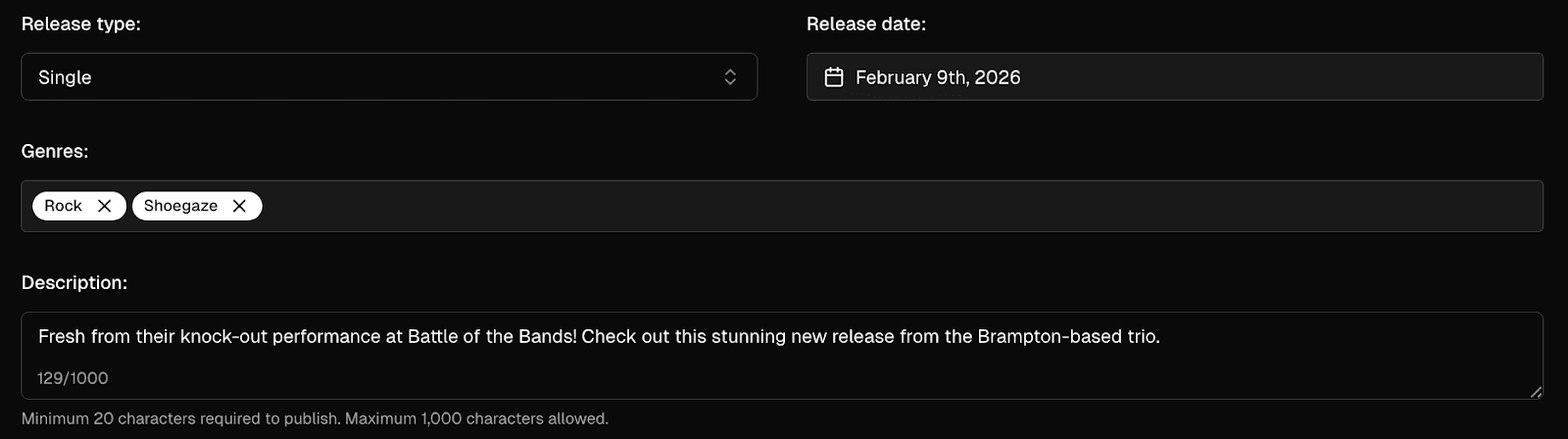
Next, scroll further down the page to add more information to share with your recipients and build excitement about your release.
Release type: Specify whether your release is a single, EP, or Album.
Release date: Add the date for your release here.
Please note that the release date is for informational purposes only, and will not impact the date your promo is sent out. You can use any past or future date.Description: Tell people about your music! Enter a description between 20-1000 characters.
Genres - Select 1 to 5 genres to help describe the content of your promo.
Allow or restrict downloads
Finally, you’ll see the following box at the bottom of your Details section:

Trackdrop gives you the option to allow your recipients to download the tracks included in your promo. You can toggle this on or off on a per-release basis by clicking in the checkbox on the right-hand side.
Save your changes
Congratulations on creating your promo! You’re nearly done and ready to get it out into the world.
To save your changes to come back to later, click Save and exit. You can come back later by finding the promo draft on your dashboard or in your drafts folder.
Otherwise, click Next: Preview to check out how your promo will look to your recipients.
Step 3: Preview and send
The Preview page shows you exactly what your recipients will receive.
The main panel shows a preview of the email your contacts will receive, including your artwork, release title, artist name, description, and track list.
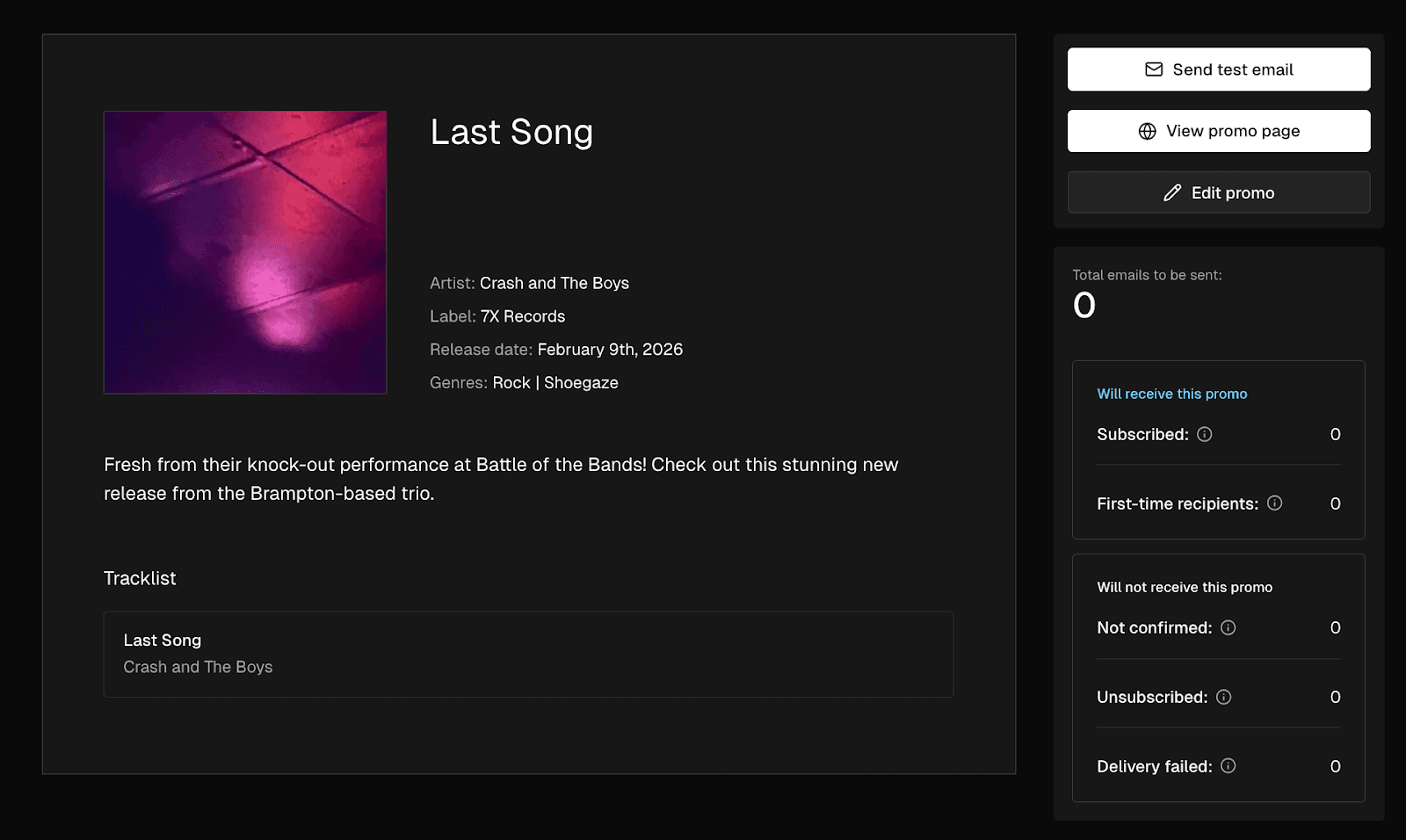
Preview actions
On the right-hand side, you'll find three buttons:
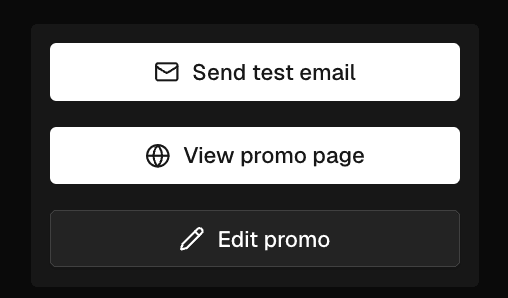
Send test email | Sends a preview of your promo to your own email address so you can check out how it looks in your inbox and on different devices. |
View promo page | Opens your promo's public page in a new tab so you can check out the page your recipients will be directed to. |
Edit promo | Lets you return to make edits to your promo. |
Send your promo
Once you're ready, click Send promo at the bottom-right. Trackdrop will send your promo to your audience. You can add contacts individually [Link to 'Adding individual contacts"] or in bulk [Link to 'Adding contacts in bulk'] before sending.
Heads up: It’s not possible to ‘unsend’ a promo. Make sure you’re happy with how your promo looks before taking this step.
Although you can’t recall the emails that have been sent out, you can still make edits that will be reflected on your promo page, or delete the promo to prevent recipients from viewing the promo page and content.
After sending, you'll be taken back to the Promos page where your promo will appear in the Sent tab.
You can view engagement stats (plays, downloads, clicks) on the promo's detail page. Go to Promos in the sidebar, find your promo in the Sent tab, and click on it to see the stats. For more information, check out: Accessing promo stats [Link to 'Accessing promo stats'].