My organization
Creating an organisation
Your organization in Trackdrop is your collaborative workspace where you and your team can upload tracks, create and manage promos, and monitor stats together.
Getting started is quick and easy:
Create and activate your account
NB: If you’re a new user looking to join an existing organization on Trackdrop, please reach out to your admin to request an invite.To get started, head to https://app.trackdrop.com/login and enter your email address.
Check your email account for a one-time passcode:
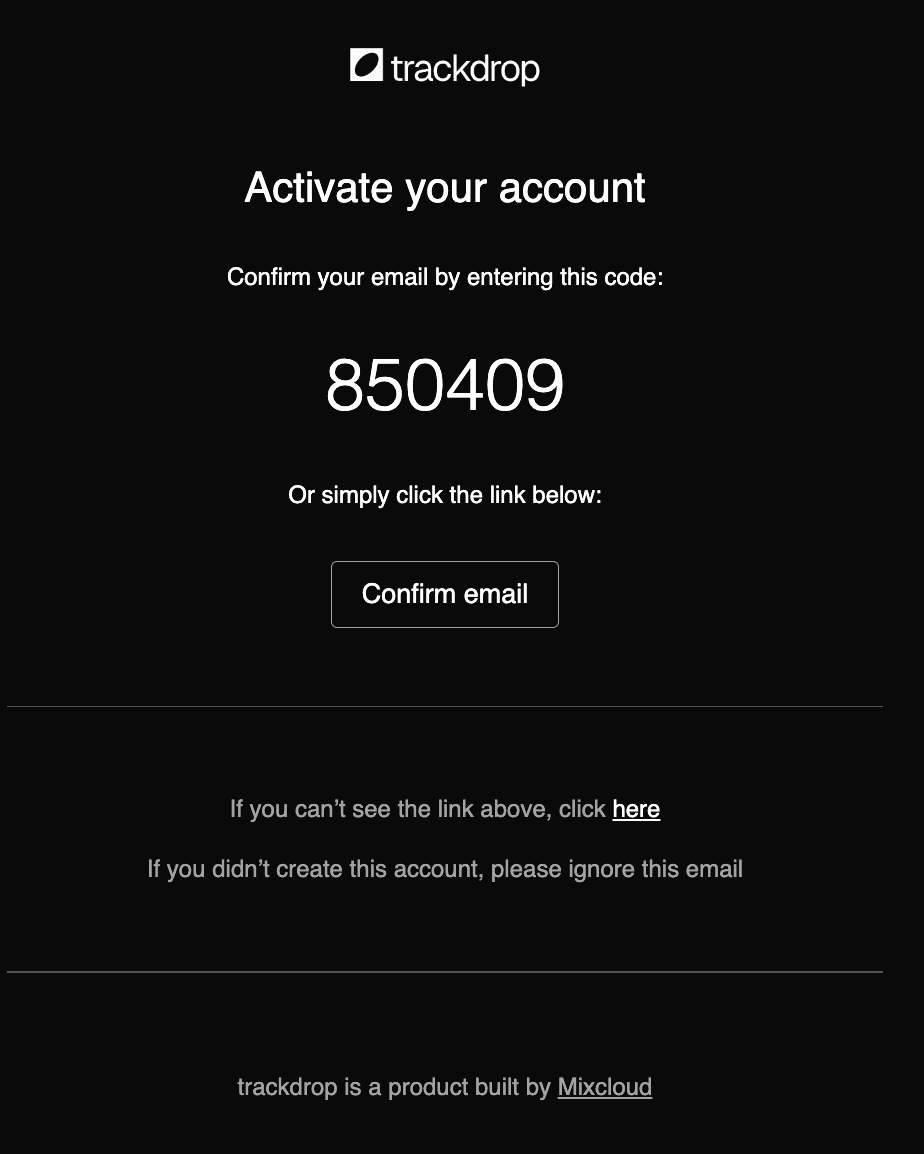
Next, click Confirm email or enter the one-time passcode in Trackdrop to continue.
Didn’t receive an email? Please double-check your spam folder, and add release@trackdrop.com to your contacts before trying to resend to make sure our emails come through successfully. Read more troubleshooting tips here [Link to: I haven't received a passcode].
Create your organization
Your account is now ready to get your organization set up!If it’s your first time creating an organization, you’ll be redirected to the organization form automatically.
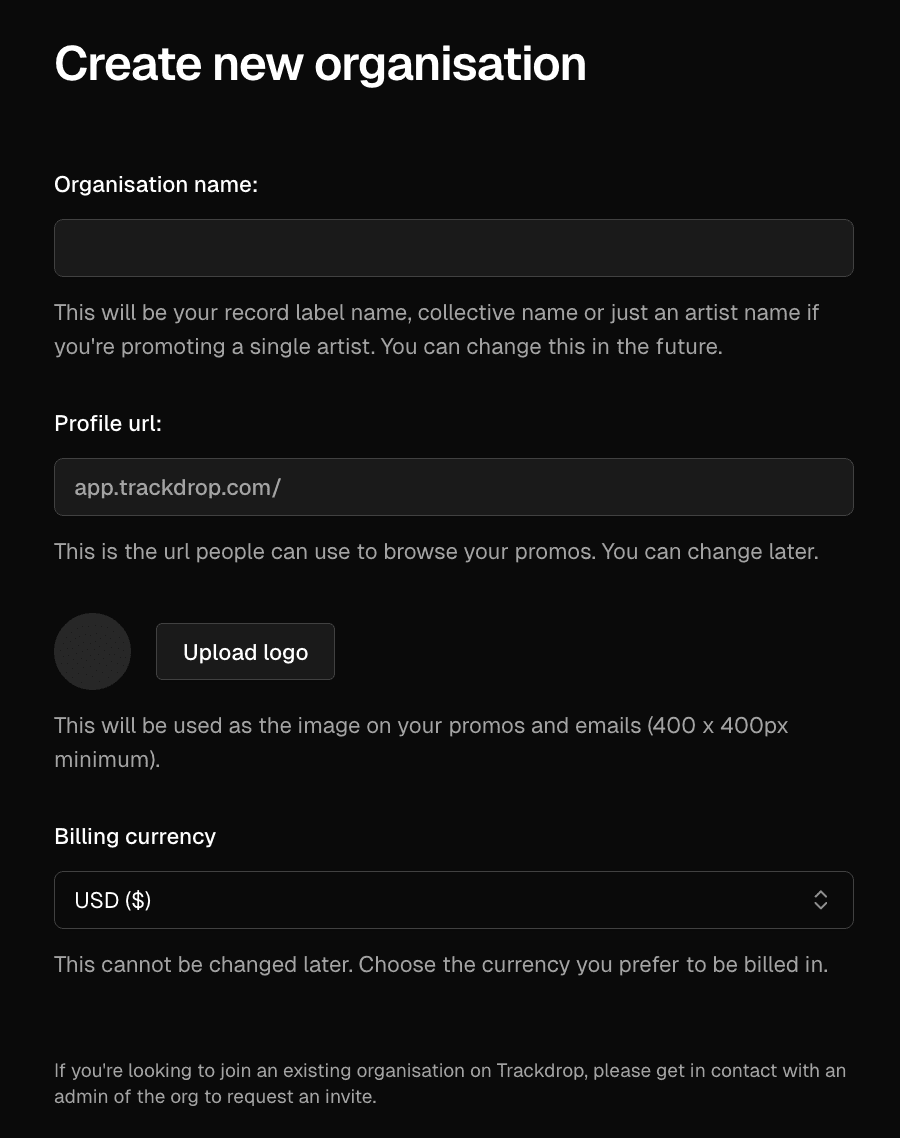
If you want to create an additional organization, click the logo in the menu bar on the left, then click + Create new org, or click here.
In the organization form, fill in the following details:
Organization name: Enter the name of your organization.
Profile url: Each organization has a unique link. You can enter letters and numbers to customize your URL.
Logo: Add a custom logo to brand your organization and releases.
Image file requirements: 400x400px minimum, PNG or JPG.Billing currency: This is the currency that you’d like to be billed in for your subscription. Please note that this cannot be changed later.
Submit and confirm
Click the Create organization button at the bottom of the screen to save your details.
Not sure about your organization name or logo yet? Don’t worry - you can enter placeholder details for now and edit this information in your settings later [link to 'branding your organization'].
Congratulations! Your organization is now live. Next, you can create your first promo[link to 'creating a promo'] or invite team members[link to 'inviting members to your organization'].