Promos
Sending a test promo
What is a test promo?
A test promo is a preview email that you can send to your own address before you publish your promo to your wider audience using Trackdrop.
It shows you exactly what your contacts will see when you send your promo, including the release artwork, track listings, and download links.
Test promos are sent only to you; they never go to your contacts and don't create any tracking data. Think of it as a safe way to verify that everything looks perfect before going live.
Testing is especially helpful if this is your first promo, you've made significant changes to your release details, or you're experimenting with new artwork or descriptions.
Creating a test promo
Before you can send a test promo, you need to create a promo draft. The promo creation process has three main steps:
Step 1: Upload
The first step is uploading your music files. You can select files or drag and drop them into the upload area. Each file becomes a track in your promo.
Step 2: Details
This is where you add all the information about your release - the release type, title, artist name(s), release date, genres, cover art, and more.
We’ll fill this in using the metadata from your audio files, but you can make edits until you’re happy with the information.
Step 3: Preview
The final step shows you a complete preview of your promo before you go ahead and send it, so you can make sure everything is just right. This is where you can:
Review all details: See your release information, artwork, tracks, and selected audience, and go back to make any edits.
Send a test email: Preview what recipients will receive by sending the promo to your own email address, so you can view it in your inbox and on any of your devices.
Select your audience and send your promo: When you’re ready, you can select your audience and send the promo to your contacts.
For a more detailed guide, check out: Create a promo [link to ‘creating a promo’]
How to send a test promo
Once you’ve uploaded your tracks and added your details, you’ll be ready to send a test promo.
Step 1: Navigate to the preview
Once your promo content is ready, click Next: Preview in the promo creator, or head to your drafts tab to find and click on a promo you started creating earlier.
Step 2: Send your test email
Click the Send test email button on the right side of the screen.
The button will briefly show "Sending..." while the email is being queued.
A success message will appear: "Test email sent - Check your inbox shortly".
You can send as many test emails as you want. Each time you click the button, a fresh email is sent with your current promo content. This is helpful if you're iterating on your description, artwork, or track details.
Tip: If you make changes after sending a test email, those changes won't be reflected in the previously sent email. To see what the updates look like in your email, send another test email.
Step 3: Check your emails
Your test email will arrive at your account email address soon. This normally happens within a few minutes, but delivery may take longer depending on your email provider.
If you haven’t received the email yet:
Look in your primary inbox first.
Search your email account for a message from release@trackdrop.com.
Check your spam or junk folder if you don't see it after 5-10 minutes.
Verify that your email address is correct and matches your Trackdrop account.
For more email delivery troubleshooting advice, please click here [link to "I haven’t received a passcode"].
Reviewing the promo test email
From the subject line to the artwork, info, and buttons, the test email shows you exactly what your contacts will receive when you send them your promo.
The promo will include all of the track and release details you entered, with a link to listen and/or download to the release. You can also click this link to preview the promo page.
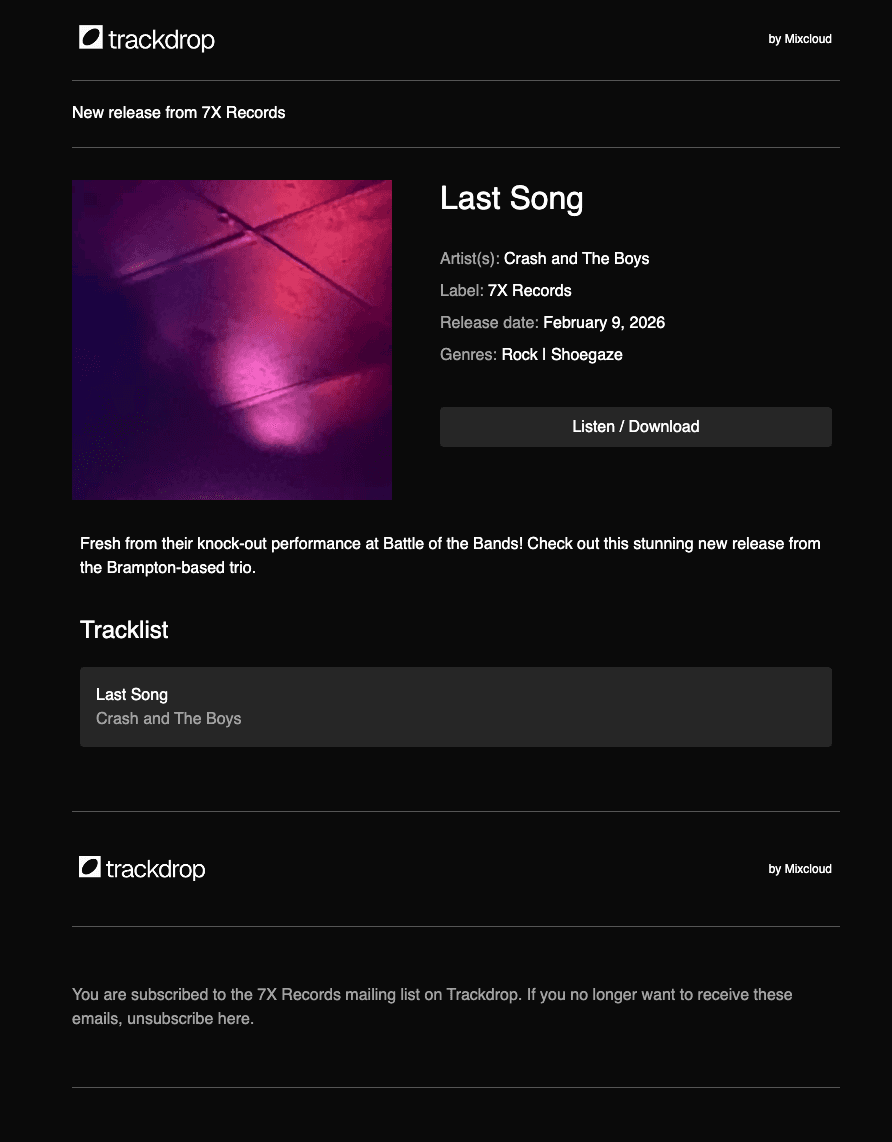
The email is designed to look professional and put your music front and center. It's mobile-responsive, so it will look great whether your contacts open it on their phone, tablet, or computer.
Next steps
If you want to make any changes, head back to Trackdrop to edit your promo again. You can make as many changes as you’d like and send unlimited test emails to your own account.
When you're ready to send the real promo, select your audience and click the Send promo button at the bottom of the preview page. That's when your contacts will receive your email.
After sending your promo, you can monitor how your promo is performing:
See who opened the email.
Track clicks on streaming and download links.
View download counts per track.
Identify your most engaged contacts.
This data helps you understand your audience and plan future promotional campaigns. Find out more about promo stats. [Link to 'Accessing promo stats]
Hints and tips
Here are some best practices for testing your promos:
Test early and often
Don't wait until you've finished every detail. Send a test as soon as you have the basics in place, then send additional tests as you refine your content. This helps you catch issues early.
View on different devices
Open your test email on your phone, tablet, and computer to see how it looks on different screen sizes. The email is responsive, but it's good to verify that everything displays well.
Share with trusted collaborators
While test emails can only be sent to yourself, you can forward them to collaborators, managers, or other trusted people for feedback before sending to your full audience. Please note that the links in the email won’t work, unless they’re a logged-in member of your Trackdrop team.
Read your promo as a recipient
Imagine you're receiving this promo from another artist. Is the information clear? Does it make you want to listen? Is anything confusing or missing?
Troubleshooting
I didn't receive my test email
Wait a bit longer: Emails can sometimes take 5-10 minutes to arrive. If your email hasn’t arrived after this time, try clicking Send test email again.
Check your spam folder: Test emails sometimes end up in spam, particularly if this is your first promo or your email provider doesn't recognize the sender.
Verify your email address: Go to your account settings and confirm that your email address is correct. Test emails go to the email associated with your account.
The test email looks different than I expected
Recent changes not reflected: If you just made changes to your promo, make sure you saved them before sending the test. Then send a new test to see your updates.
Browser caching: The preview in the app might be cached. Try refreshing your browser before sending another test.
Email client rendering: Different email clients (Gmail, Outlook, Apple Mail, etc.) can render HTML slightly differently. If something looks off, try opening the email in a different client to see if it's a rendering issue.
Common questions
How many test emails can I send?
There's no limit. Send as many tests as you need to feel confident in your promo.
Do test emails count against any limits or quotas?
No. Test emails don't count towards your Trackdrop usage, so you can send as many as you like without worrying about running out of credits.
Can I send a test after publishing?
Yes! Even after you've published a promo, you can continue to send test emails. This is useful if you're considering making changes to a published promo and want to preview how those changes will look.
Can I send test emails to a different address?
Test emails always go to your account email address. If you want to test with a different address, you can:
Forward the test email or a screenshot to another address or contact.
Note that the link to view the promo page won’t work unless they’re a logged-in member of your organization, or the promo has previously been published.
If the person you want to send the email to is a close collaborator, consider making them a part of your team on Trackdrop.
Add the address you want to send the promo to as a team member. After accepting, log in from this address and click Send test email.
Temporarily change your account email in settings (not recommended).
Will my test email activity be counted in the stats?
No. Promo tests won’t be counted in your stats [Link to 'Accessing promo stats'], so we can ensure we’re showing you genuine engagement from your audience.
Can I test before uploading tracks?
No. You need to complete the Upload and Release Details steps before you can access the Review step where test emails are sent. This ensures your test email actually has content to display.