My organization
Managing invitations
Owners and admins of organizations can invite new members [Link to 'Inviting members to your organization'] and manage existing invitations from the team settings page.
Viewing pending invitations
Head to https://app.trackdrop.com/dashboard/_/settings, or click Settings from the menu bar and scroll down to the Team section.
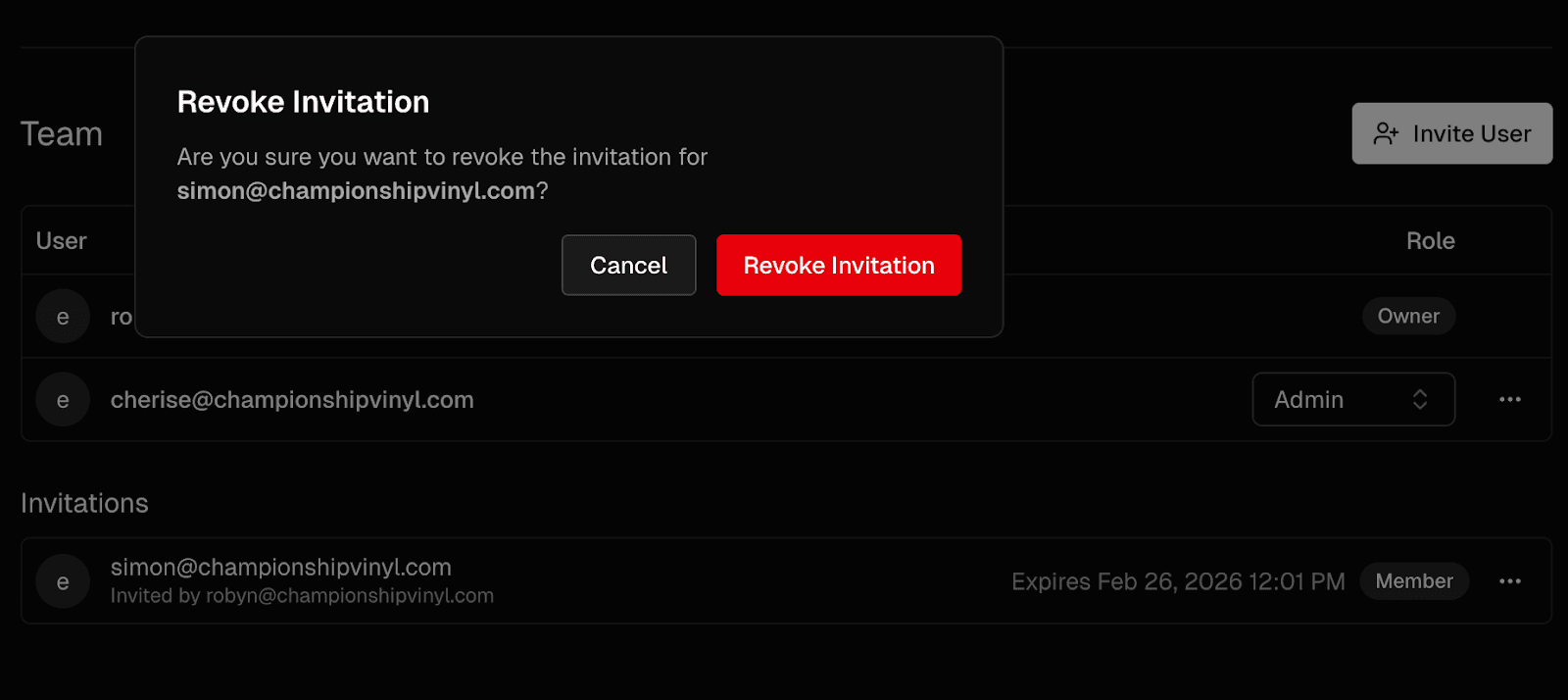
If you’ve sent invites that haven’t been accepted yet, they’ll be under the Invitations section.
Here, you’ll be able to see:The email address the invitation was sent to
Who they were invited by
The invitation expiry date

Resending an Invitation
If your team member didn't receive the email, or the invitation link has expired:
Find the invitation in the Invitations section.
Click the More options (three-dot) button and click Resend invitation.
A new invitation email will be automatically sent to the invitee, with a fresh link.
Note: previous invitations will be replaced. Your invitee will need to use the link in the most recent invitation they received to join your team.If you need to update the email address, click Revoke invitation and start a new invitation using their new contact details.

Revoking an Invitation
Changed your mind? You can cancel pending invitations:
Scroll down to the Invitations section.
Find the email address you want to revoke the invitation from.
Click the More options (three-dot) button, and click Revoke invitation.
Confirm the action in the alert dialog by clicking Revoke Invitation.
This will void the link in the invitation email that was sent to this address. The recipient will no longer be able to join unless you choose to send them a new link by clicking Invite User.