My audience
Deleting contacts from my audience
Your audience in Trackdrop is made up of contacts. If you need to remove someone from your audience, you can delete them individually or in bulk.
NB: Deleting a contact removes them from your audience list, and you’ll need to re-add them later if you change your mind. If you only want to remove someone from a specific audience group so you can better target your promos, consider using tags instead.
Deleting a single contact
Go to Audience in the sidebar.
Find the contact you want to remove.
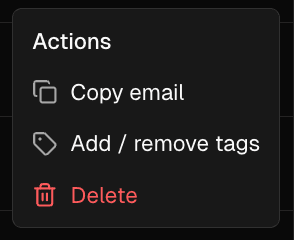
Click the three-dot menu icon at the right-hand end of their row.

Select Delete from the menu.
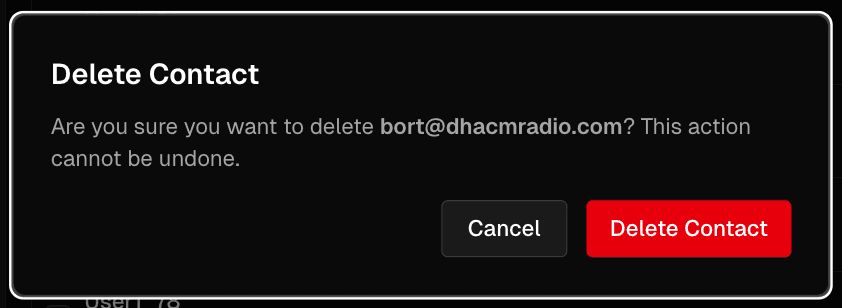
A confirmation dialog will appear showing the contact's email address. Click Delete Contact to confirm.
The contact will be removed from your audience, and you’ll need to add them again individually or in bulk if you want them to receive your future promos.
Deleting multiple contacts at once
Go to Audience in the sidebar.
Use the checkboxes on the left of each row to select the contacts you want to remove. To select all visible contacts at once, use the checkbox in the column header.
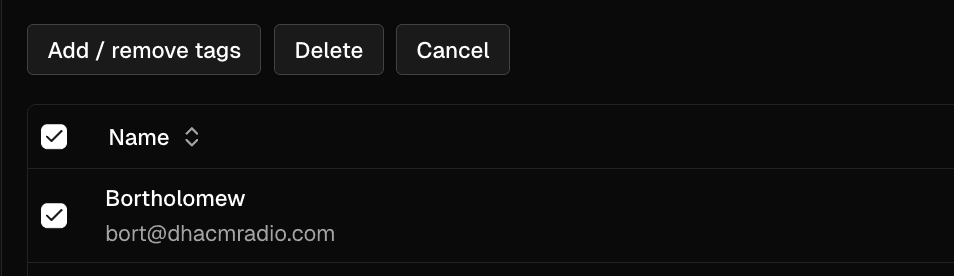
An action bar will appear above the table. Click Delete.
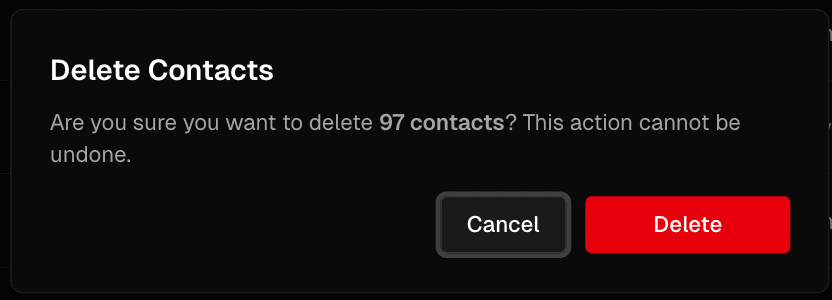
Confirm the action in the dialog that appears, then click Delete to proceed.
All selected contacts will be removed from your audience, but you can add them again individually or in bulk if you want them to receive your promos in the future.