Promos
Editing a sent promo
If you’ve sent out your promo but noticed something you’d like to update, you can make changes that will be reflected on your release’s promo page.
What changes can I make?
Once a promo is sent, you can still update any of the following at any time:
The release’s title and artist name.
Cover artwork - you can swap in any cover art you choose.
The release type (Single, EP, or Album).
The release date listed for your content.
Genres.
The description.
Downloads: you can enable or disable future downloads for your release.
Tracks: add or remove tracks, reorder the list, or edit the title and artist on individual tracks.
A few things are fixed once a promo is sent, and cannot be changed:
The emails that were sent.
These have already been delivered to your recipients and can't be recalled or edited.
Although the actual content of the emails can’t be changed, edits you make will be visible when recipients click through to the promo page.
The recipients who were sent the promo.
You can't add or remove contacts after sending.
The promo link.
The URL for your promo page stays the same, even if you change the title.
The upside: because the promo link stays the same, recipients who click through from their original email will always land on the latest version of your promo page.
Past downloads:
You can disable future downloads, but recipients who already downloaded the track(s) from the promo will still have access to the content they downloaded.
How to edit a sent promo
Open your Promos list from the dashboard.
Click the promo you want to update.
Click the Edit button on the promo page:
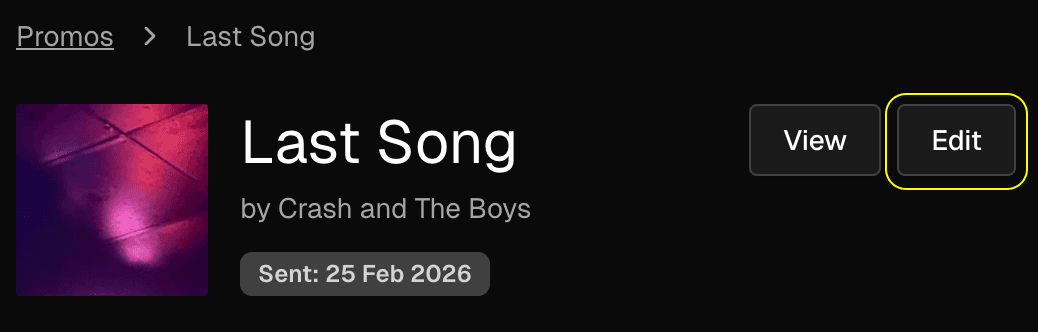
Make any changes to your promo’s details.
Click Save changes when you're done.
Your updates will go live on the promo page immediately.