My audience
Importing contacts from Inflyte
If you're switching from Inflyte to Trackdrop, you can bring your contacts across in a few simple steps by downloading your contacts as a CSV and uploading this to Trackdrop.
Step one: export your contacts from Inflyte
Log in to your Inflyte account.
Navigate to the label containing the contacts you want to export.
Click Tools, then click Export.
Inflyte will download a CSV file to your computer.
If you manage multiple labels on Inflyte, you can repeat this process for each label you want to migrate.
Step two: import the CSV into Trackdrop
Log in or sign up to Trackdrop.
Click Audience in the left sidebar.
Click Add contacts near the top of the screen, then select Import from CSV.
Drag the exported CSV file into the upload area, or click Choose file to browse for it.
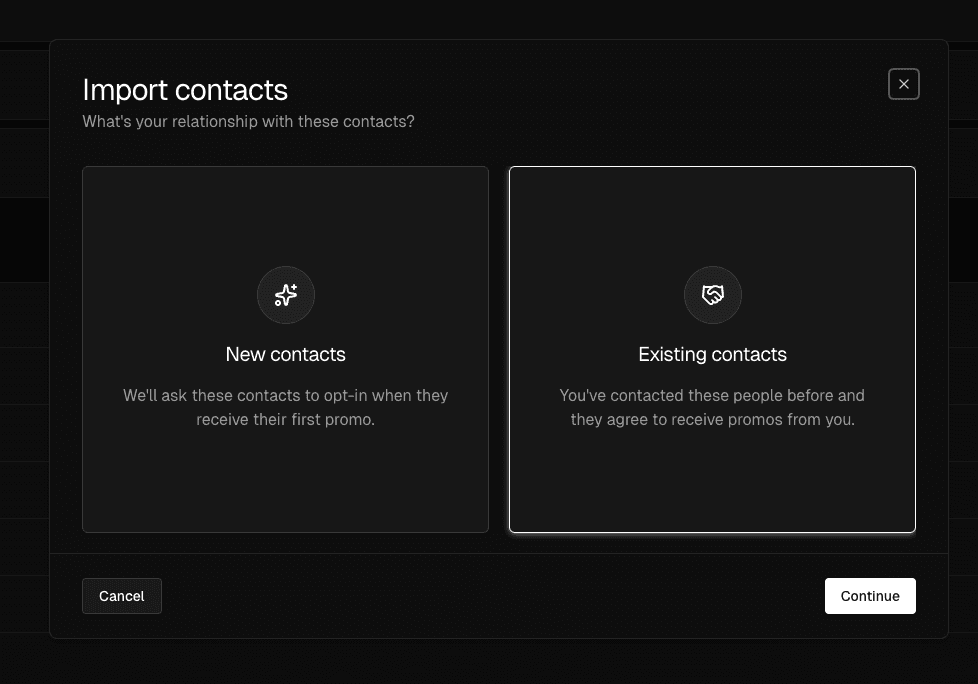
If your contacts had already opted in to receive promos from you on Inflyte, tick ‘These contacts already opted in on another platform’, then click Continue. This marks them as subscribed straight away, so they won't be asked to opt in again when they receive their first promo from you.
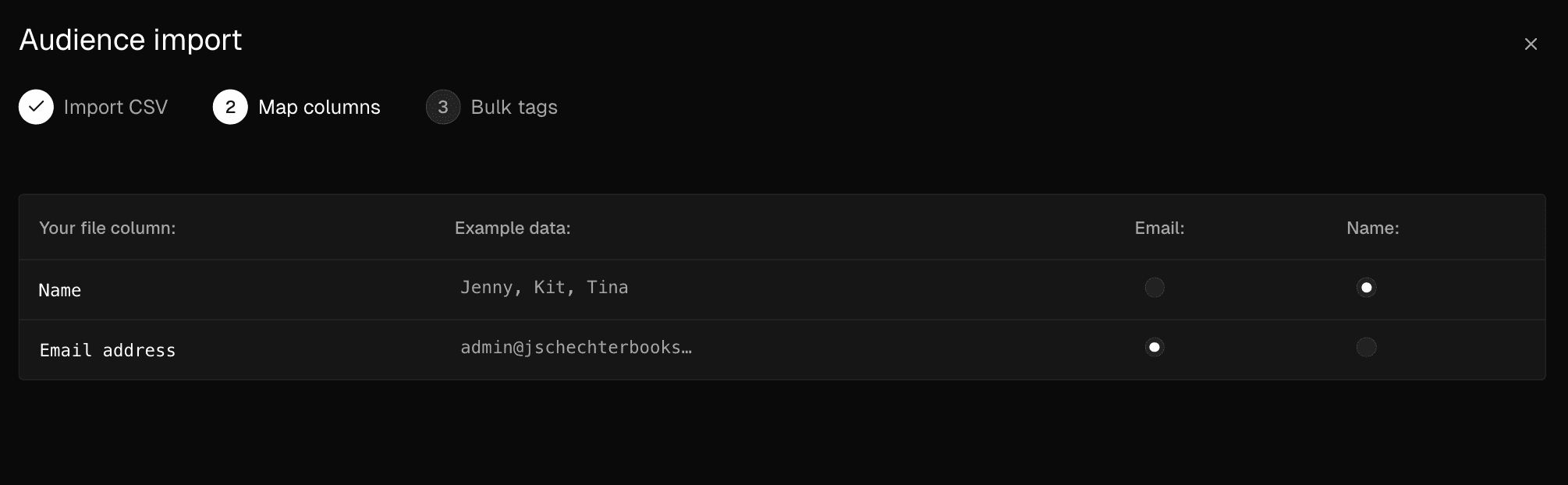
On the Map columns step, check that Email and Name are matched to the correct columns in your file. For a standard Inflyte export, these should map across automatically.
Optional: on the Bulk tags step, you can assign tags to all the contacts in this import. If you're bringing over contacts from multiple Inflyte labels, adding a matching tag for each label is a good way to stay organised.
Click Import contacts to finish.
Once your contacts are imported, you're ready to start sending promos! Read more about creating your first promo here.
What if my columns don't map automatically?
Trackdrop will try to detect the right columns based on the header names in your CSV file. If the Email or Name don't map automatically, you can select them manually using the radio buttons on the Map columns step.
For more detail on how column mapping works, take a look at our guide on adding contacts in bulk.
What if I have duplicate contacts?
If you’re importing contacts for more than one label into Trackdrop, you may have duplicates in your files. Trackdrop automatically skips contacts whose email address already exists in your audience, so it's safe to re-import.